
Shopware cross-selling for many products: assign, transfer, import
Accessories, matching spare parts, similar products: cross-selling sells along, but in the Shopware admin you create it product by product. With hundreds of products it therefore often stays empty. In the PIM you assign cross-selling in bulk, transfer it to variants or import it via file.
- For many products at once: in bulk editing you create a cross-selling group with name, position, type, sorting, limit and active status for all selected products.
- Existing groups stay: the products' existing cross-selling groups are kept.
- Transfer to variants: copy the main product's cross-selling and price tiers to all variants with one click.
- Via CSV: export and import groups and assigned products by product number.
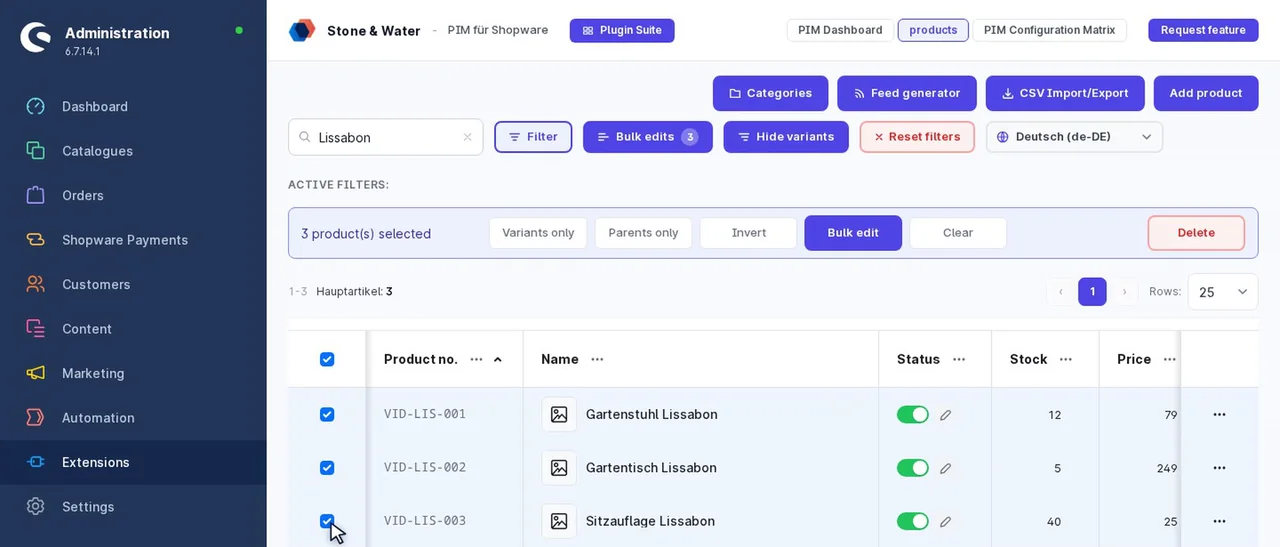
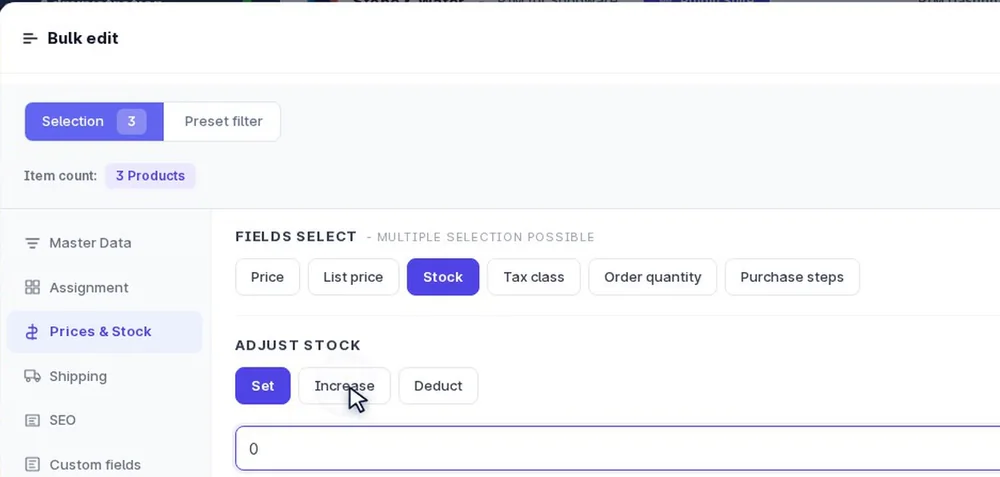
- Select products
- Assignment tab, assign cross-selling
- Choose product list or dynamic product group
Cross-selling in standard Shopware
Shopware has two kinds of cross-selling: a fixed product list or a dynamic product group that selects products by rules. Both are created in each product's detail view, in the cross-selling tab. For a range with hundreds of products that means the same clicks hundreds of times.
Cross-selling in bulk editing
- Select products: by filter or preset, for example all grills of one manufacturer.
- Bulk editing, "Assignment" tab, "Assign cross-selling": set group name, position, type (dynamic product group or product list), sorting, limit and active status.
- Confirm: a snapshot saves the previous state.
The dynamic product group is especially handy: a group "Matching accessories" then automatically shows the group's products for all selected grills, without maintaining anything per product.
Transfer cross-selling to variants
Variants can have cross-selling of their own. So that all variants show the same as the main product, "Transfer to variants" in the "Prices & stock" tab copies cross-selling and price tiers from the main product to all variants, including the assigned products. Existing variant data is overwritten.
Cross-selling via CSV
The crossSelling column holds the groups per product with the product numbers of the assigned products. Several product numbers are separated by a vertical bar, several groups by a tilde:
productNumber;crossSelling
GRILL-500;Accessories:COVER-500|TONGS-01~Spare parts:GRATE-500
If the group already exists on the product, the import replaces its products. Otherwise it creates it as a product list. The quickest template is an export with the cross-selling column.
Product list or dynamic product group?
| Type | Fits when | Example |
|---|---|---|
| Product list | the assignment is fixed and rarely changes | spare parts for a device, via CSV with product numbers |
| Dynamic product group | matching products follow from rules | "Matching accessories" from a category or by manufacturer |
For large ranges the dynamic product group is usually easier to maintain: new accessories appear automatically without touching the cross-selling.
Frequently asked questions
Can I create cross-selling in Shopware for many products at once?
In Shopware's detail view you create cross-selling per product. In the PIM you create a cross-selling group for all selected products at once in bulk editing.
Are existing cross-selling groups lost?
No. Bulk editing creates a new group, existing groups are kept.
How do variants get the same cross-selling as the main product?
With "Transfer to variants" in the Prices & stock tab. It copies cross-selling and price tiers from the main product to all variants.
What does the CSV column for cross-selling look like?
Group name, colon, product numbers separated by a vertical bar. Several groups are separated by a tilde, for example Accessories:ART-1|ART-2~Spare parts:ART-3.
Which type is better?
It depends on the assignment. Fixed relations such as spare parts suit the product list, rule-based ones such as accessories of a category suit the dynamic product group.
Do variants get the cross-selling automatically?
Variants can have cross-selling of their own. With "Transfer to variants" you copy the main product's to all variants.
Further reading
- Shopware 6 bulk editing: all fields for many products
- Bulk assign properties and categories: assignment for many products
- Import Shopware products: CSV, Excel and mapping
- Shopware variant inheritance: what variants inherit